Cursor Computer Use lets Cursor’s coding agent leave the editor and drive real desktop apps, and it makes Cursor the fourth major coding agent to ship that ability in 2026. Cursor announced it on October 23. The flagship example is an agent that builds an iOS feature, opens the iOS Simulator, taps through the flow and fixes what it finds.
That is a genuinely useful loop for anyone shipping native or Electron apps. It is also the least documented of the four implementations right now. I read Cursor’s docs, the GitHub, Anthropic and OpenAI equivalents, and the early coverage to work out what each one actually lets the agent touch, and where the guardrails stop.
What Is Cursor Computer Use?
Cursor Computer Use gives the agent in the Cursor desktop app the ability to click, type and capture screens in GUI apps on your machine. According to AlphaSignal’s report, there are two ways it gets used:
- Manually, by adding
@Computer Useto a prompt - Automatically, when Cursor decides a task needs a visual interface
You get it by updating the desktop app. Cursor announced no pricing change alongside it.
The capability itself is not new at Cursor. Cloud agents already run in their own isolated VM with a full desktop, start dev servers, click through UI flows and attach screenshots and videos to the pull request. Self-hosted workers could drive the machine they run on. What changed on October 23 is that the local IDE agent, the one running on your laptop next to your email, got the same reach.
That last part is why this release deserves more caution than the cloud version. A VM that gets thrown away is one thing. Your signed-in Mac is another.
How to Enable Cursor Computer Use
In the IDE, update Cursor and @-mention Computer Use in an Agent conversation. For self-hosted workers, the Cursor docs spell out the setup in detail:
# update the Cursor CLI first
agent update

# start a worker with computer use enabled
agent worker --computer-use start

# check the helper app is installed (does not check permissions)
agent worker debug
Worker flags go before start, so a pool example is agent worker --pool gpu --computer-use start.
On macOS, the CLI downloads a separate helper app called Cursor Computer Use on first start. It needs two permissions: Accessibility, to interact with apps, and Screen Recording, to see them. The docs are specific that you grant both to that helper, not to Terminal, the Cursor app or Cursor Agent Helper.
There are a few sharp edges in the macOS notes:
agent worker debugconfirms the app is installed but not that permissions were granted, so verify with a real screenshot-and-click task- On macOS 15 and later, Screen Recording may need periodic re-approval on long-running workers
- Cursor ships no
.mobileconfig, and Screen Recording cannot be pre-approved by an MDM profile
On Linux, computer use runs against an X11 display and needs xdotool, ffmpeg and the X11 utilities. Desktop sharing, which lets a human watch or take over the agent’s desktop, is Linux-only and runs in an isolated, worker-created desktop.
Enterprise admins can turn the feature off with the Computer Use switch under MCP Configuration in team settings. It is on by default.
Cursor vs GitHub Copilot vs Claude Code vs Codex
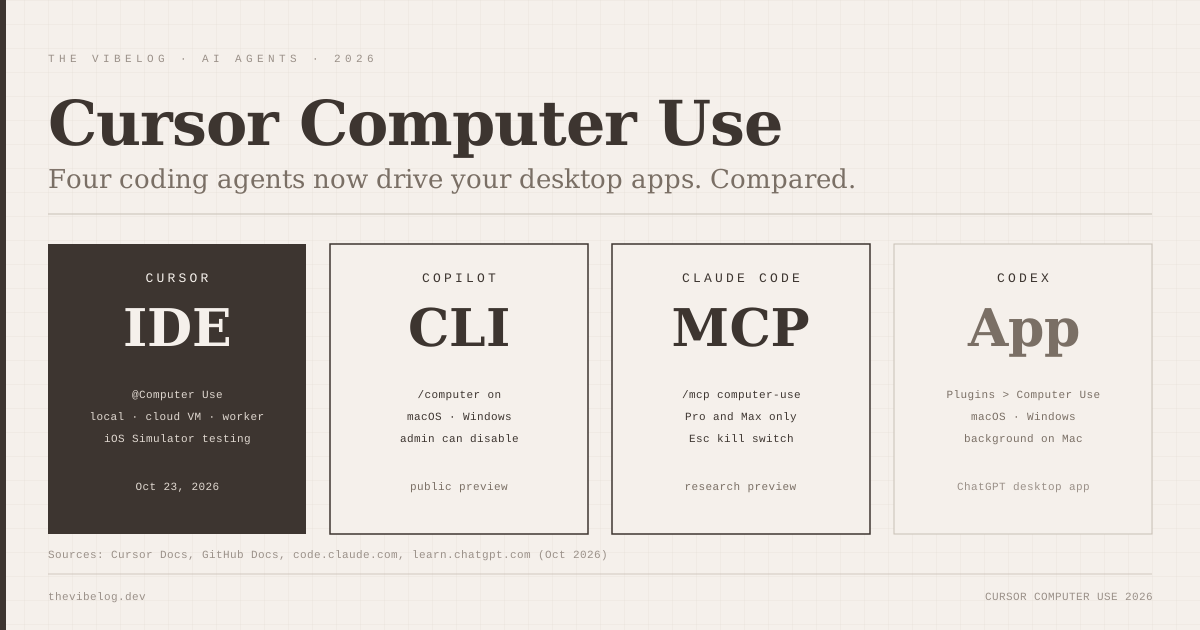
All four agents can now operate desktop apps, but they differ sharply on platforms, plans and how much of the permission model is written down.
| Agent | Platforms | Plans | Status | Approval model |
|---|---|---|---|---|
| Cursor (IDE agent) | Not documented | No change announced | Launched Oct 23, 2026 | Not documented for IDE |
| GitHub Copilot (CLI + app) | macOS, Windows | Not specified | Public preview | Per app, deny rules win |
| Claude Code | CLI macOS; Desktop macOS + Windows | Pro and Max only | Research preview | Per app, per session, with warnings |
| Codex (ChatGPT desktop app) | macOS, Windows | ChatGPT Work and Codex | Shipped Apr 2026, Windows added later | Per app, “Always allow” |
(Sources: Cursor docs and AlphaSignal; GitHub Docs; Claude Code docs; OpenAI Computer Use docs, Oct 2026)
GitHub Copilot computer use
GitHub shipped computer use as a public preview on October 1 in Copilot CLI and the Copilot app on macOS and Windows. You turn it on with /computer on. It reads apps through the operating system’s accessibility tree and falls back to screenshots when it needs visual context.
The approval model is the most enterprise-friendly of the four. You can allow per session, save an “Always allow”, or deny, and deny rules override saved approvals. Enterprise admins can disable it through managed settings, and a local setting cannot override that. I covered the details in the GitHub Copilot computer use guide.
Claude Code computer use
Claude Code ships computer use as a built-in MCP server called computer-use, enabled from /mcp. Anthropic labels it a research preview that requires Pro or Max and is “not available on Team or Enterprise plans”. The CLI is macOS-only, and the Desktop app adds Windows.
It has the most layered guardrails of the group:
- Apps are approved per session, and Terminal, VS Code, Finder and System Settings carry explicit warnings such as “Equivalent to shell access”
- Browsers and trading platforms are view-only, terminals and IDEs are click-only
- Only one session can control the computer at a time
- Esc anywhere aborts, and the key press is consumed so a prompt injection cannot use it
- Your terminal is excluded from screenshots
Claude Code also tries MCP servers, Bash and Claude in Chrome first, and falls back to screen control only when nothing more precise works. That ordering is the right default. Screen control is the slowest and least predictable tool an agent has.
Codex computer use
Codex computer use now runs in the ChatGPT desktop app on macOS and Windows, in supported regions, for ChatGPT Work and Codex. You install it from Plugins, then review app access under Settings.
The big difference is background operation. On macOS, Codex can run a scoped task in the background while you keep working, and an opt-in locked mode lets it briefly unlock a locked Mac during an active turn. On Windows it is foreground-only and takes over the screen. OpenAI’s docs say it cannot automate terminal apps or ChatGPT itself, and cannot approve admin or security prompts. Admins can restrict apps or disable it via requirements.toml.
Where Cursor fits
Cursor’s real advantage is the workflow. The same agent that writes the Swift or React Native code can open the simulator and check it, inside the editor most of its users already live in. Cursor also has the most complete story across environments, with local, cloud VM and self-hosted worker versions of the same feature.
Its weakness is the documentation gap. The DEV Community write-up by Gabriel Anhaia lists what was still undocumented for the IDE path at launch: whether the agent asks before clicking in a new app, whether access can be limited to an app list, whether screenshots are retained, and whether Windows is supported. Cursor’s changelog had no entry for it as of this writing.
Pick Copilot for central admin control on Windows and macOS, Claude Code for the strictest built-in guardrails, Codex for background runs on a Mac, and Cursor if you want simulator testing inside the IDE you already use.
Cursor Computer Use Security Risks
Computer use runs outside every sandbox you have configured, on the desktop where your real accounts are signed in.
Anthropic’s docs say so directly: unlike the sandboxed Bash tool, computer use “runs on your actual desktop with access to the apps you approve.” GitHub’s docs warn that windows may expose sensitive information and that “Always allow” lets later actions control an app without another prompt. OpenAI tells you to stay present for account, payment and credential steps.
For Cursor, the missing permission documentation makes this worse. If the IDE agent can choose computer use on its own, you need to assume it can see whatever is on screen when it decides to.
My practical setup for any of the four:
- Use a separate macOS user for agent work. Screen Recording grants are tied to the approving user, so this isolates the agent from your personal session.
- Close what you would not paste into a prompt. Mail, password managers, banking tabs and Slack all count.
- Commit before the run. A clicked-through flow can change app state and files you did not expect.
- Revoke the helper’s permissions in System Settings when you are done, and re-grant them next time.
- Treat the result as a test run, not proof. The agent tapping through a happy path does not mean the edge cases work.
If you want OS-level containment for the shell side of these agents, the Microsoft Execution Containers guide covers the Windows option, though none of these sandboxes cover screen control itself.
Is Cursor Computer Use Worth Turning On?
Yes, for native, mobile and Electron work, as long as you run it on a machine or user account with nothing sensitive on screen. Being able to say “build it, open the simulator, tap through onboarding and fix what breaks” in one prompt removes a slow manual step from every UI change.
For web apps, I would not reach for it first. Cursor’s cloud agents, Claude in Chrome and Playwright MCP all test a browser more precisely than pixel-level clicking. Use computer use where nothing else reaches.
On cost, nothing changes on paper, but screen-driving loops burn tokens on every screenshot. If you run Claude or GPT models inside Cursor, those are now billed at API list price under the X Subscription changes, so a long simulator session is not free. If you are weighing cheaper models for that work, today’s Kimi K3.1 Pro breakdown covers the newest open-weight option.
My take: Cursor shipped the most convenient version of this feature and the least documented one. Until Cursor publishes the IDE permission model, I would run it with the same caution as an unattended agent on a shared machine.