GitHub Copilot computer use went into public preview on October 1, 2026, and it means Copilot can now click, type, scroll and drag inside any desktop app on your Mac or Windows machine. It works in both Copilot CLI and the GitHub Copilot app, and you turn it on with a single slash command.
That makes GitHub the third major vendor to ship desktop control for a coding agent, after Anthropic’s Claude Code and OpenAI’s Codex app.
The interesting part is not that Copilot can move your mouse. It is that GitHub shipped it with enterprise admin controls on day one, which neither of its two main rivals offers in the same way.
I read GitHub’s changelog entry and the full computer use concept page in GitHub Docs, then lined them up against Anthropic’s and OpenAI’s documentation. I have not run Copilot’s computer use myself yet, so everything below comes from the vendors’ published docs and the coverage around the launch.
What GitHub Copilot Computer Use Actually Does
GitHub Copilot computer use lets the agent operate desktop software through the same interface you do: the screen, the keyboard and the mouse.
According to GitHub Docs, Copilot reads “accessible application content and visual context through your operating system’s accessibility tree or screenshots”. It then performs actions: clicking controls, entering and editing text, pressing keys, scrolling, dragging and moving between applications.
The accessibility tree detail matters more than it sounds. An agent that only sees screenshots has to guess where a button is from pixels. An agent that can read the accessibility tree knows that a control is a button labelled “Submit” at a given position. That is usually faster and less error-prone, though it only works when the app exposes proper accessibility metadata.
GitHub’s pitch is aimed at the gap that MCP left open. The changelog says the feature targets “legacy and GUI-only software that do not provide an API, command-line interface, or MCP integration.”
Pierce Boggan from the Copilot team announced it on X with three example uses: automating expenses, booking travel and speeding up end-to-end testing. GitHub’s own best-practice examples are smaller, such as summarising browser notifications, updating a presentation, or moving information through a desktop workflow.
Honestly, the expense and travel examples tell you who GitHub thinks this is for. It is not only developers testing their own apps. It is anyone at a company with a Copilot seat and a desktop full of internal tools that never got an API.
Copilot computer use is a fallback for software with no programmatic interface, and GitHub is positioning it beyond pure coding work.
How to Enable GitHub Copilot Computer Use
Computer use is off by default, and turning it on takes one command in the CLI or one toggle in the app.
In Copilot CLI:
/computer on     # enable computer use
/computer show   # check current status
/computer off    # disable it again
In the GitHub Copilot app, open Settings, select Computer Use and switch on “Enable Computer Use”. The /computer on command works in the app as well.
On macOS you need two operating system permissions, and Copilot walks you through granting both:
- Accessibility, which lets Copilot control application interfaces
- Screen Recording, which lets it capture visual context when the accessibility tree is not enough
Windows is supported too. GitHub’s docs only call out the macOS permission flow specifically.
GitHub’s changelog does not name specific Copilot plans for the preview. It requires Copilot CLI or the GitHub Copilot app, so if your organisation has already enabled those, you can probably try it today. If you are unsure what your seat includes after the June billing change, my breakdown of GitHub Copilot pricing in 2026 covers the plan differences.
Setup is the easy part: one command, two macOS permissions, and per-app approvals on first use.
The Approval and Admin Model
This is where GitHub Copilot computer use is more thought-through than I expected for a preview.
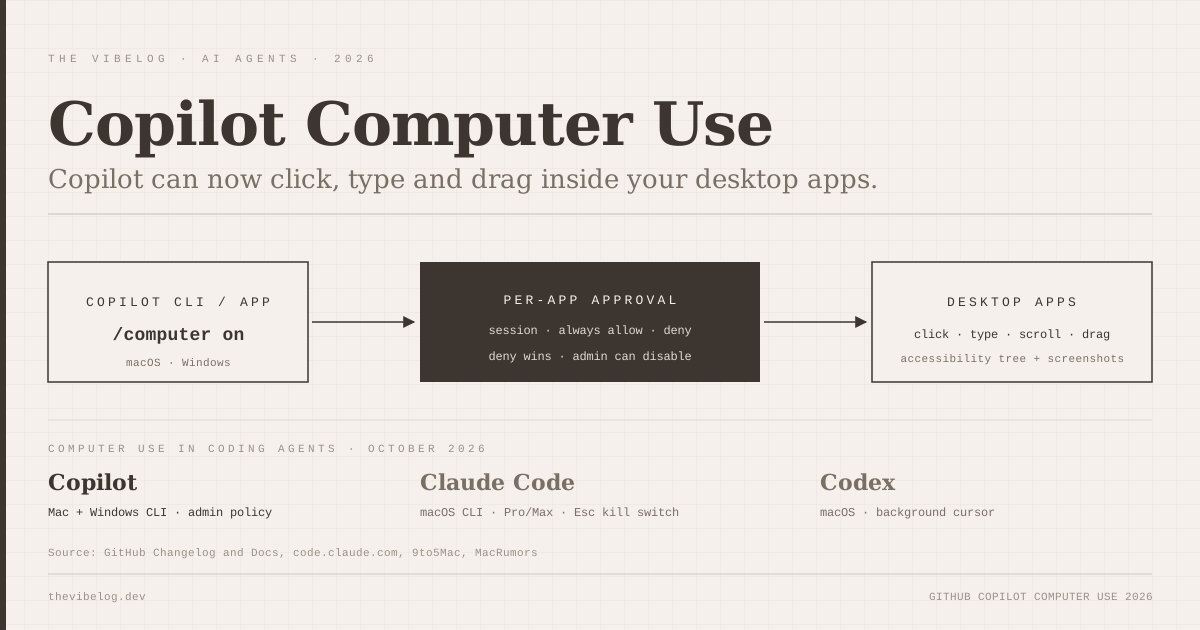
Every app needs approval before Copilot touches it. When Copilot asks, you can approve for the current session, save the approval for future sessions, or deny. Saved “Always allow” approvals are stored locally and apply to both the CLI and the app.
Three details in the docs stood out to me:
- Denial rules beat approvals. If a deny rule exists for an app, it overrides any automatic or saved approval.
- Revoking is not instant. Deleting a saved approval stops future access, but it does not cut off a session that is already running.
- Admins win. Enterprise administrators can disable computer use through managed settings, and the docs say local enablement cannot override that policy.
The second point is the one I would put in a team’s internal guide. If you realise mid-task that you approved the wrong app, removing it from the saved list is not enough. Stop the session.
The third point is the big one for companies. Being able to switch off desktop control centrally, in the same place you already manage Copilot, removes the main reason a security team would block the whole agent.
Per-app approvals with deny precedence and an admin kill switch make Copilot’s preview the most enterprise-ready computer use option of the three.
GitHub Copilot vs Claude Code vs Codex Computer Use
All three major coding agents can now drive desktop apps. They differ a lot on platform, plan and guardrails.
| Agent | Platforms | Plans | Status | Admin control |
|---|---|---|---|---|
| GitHub Copilot (CLI + app) | macOS and Windows | Copilot CLI or app users | Public preview | Managed settings can disable |
| Claude Code CLI | macOS only | Pro and Max only | Research preview | Not on Team or Enterprise |
| Claude Code Desktop | macOS and Windows | Pro and Max | Research preview | Not on Team or Enterprise |
| Codex app | macOS | ChatGPT plans with Codex | Shipped April 2026 | Not documented |
(Sources: GitHub changelog and GitHub Docs, October 2026; code.claude.com/docs/en/computer-use; 9to5Mac and MacRumors coverage of Codex computer use, April and May 2026.)
Claude Code computer use
Claude Code ships computer use as a built-in MCP server called computer-use, which you enable from /mcp in an interactive session. Anthropic’s docs say it is a research preview that requires a Pro or Max plan and is “not available on Team or Enterprise plans”. In the CLI it is macOS only; the Desktop app adds Windows.
Claude Code has the most layered guardrails of the three. Only one session can control the computer at a time through a lock file. Pressing Esc anywhere aborts the current action, and Anthropic says the key press is consumed so a prompt injection cannot use it to dismiss dialogs. The terminal is excluded from screenshots, so Claude never reads its own session output off the screen.
It also grades apps by risk. Browsers and trading platforms are view-only, terminals and IDEs are click-only, and Finder, terminals and System Settings get an explicit warning such as “Equivalent to shell access” before you approve them.
One more design choice I like: Claude Code tries MCP servers, Bash and Claude in Chrome first, and only falls back to screen control when nothing more precise applies.
Codex computer use
OpenAI added computer use to the Codex app in April 2026. According to 9to5Mac, Codex works with its own cursor in the background, and multiple agents can operate in parallel without taking over your own windows. That is a real productivity difference: Copilot and Claude Code both take visible control of the screen.
MacRumors reported that Codex cannot automate terminal apps, Codex itself or system-level admin prompts. At launch it was unavailable in the European Economic Area, the UK and Switzerland. Like Copilot, it asks permission per app and supports “Always allow”.
Pick Copilot if you need Windows support in a terminal agent or central admin control, Claude Code for the most built-in guardrails, and Codex if background parallel control matters most.
Computer Use Security Risks to Plan For
Computer use moves the agent outside every sandbox you have configured, and GitHub says so plainly.
GitHub’s docs warn that “ambiguous instructions or unexpected on-screen content may cause unintended actions that affect your device, data, or connected accounts.” Anthropic’s docs make the same point from the other side: unlike the sandboxed Bash tool, computer use runs on your actual desktop.
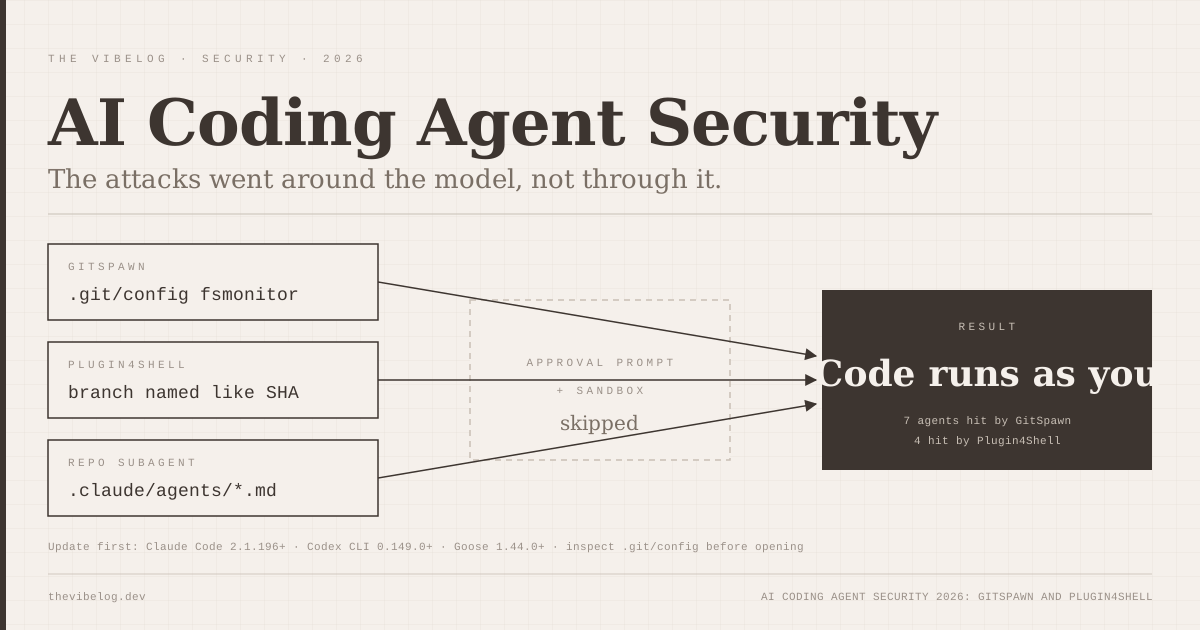
On-screen content is the new prompt injection surface. A web page, an email preview or a chat message visible during a task is input the agent reads. If that content contains instructions, the model has to resist them. I covered how agents keep getting compromised through channels that never touch the prompt in my write-up on AI coding agent security after GitSpawn and Plugin4Shell, and desktop control widens that surface again.
GitHub’s docs also raise a privacy point that most launch coverage skipped. Application windows can show information about other people, such as a colleague’s message or a customer record, and the agent will see it.
Here is what I would put in place before turning it on:
- Never “Always allow” email, banking, password managers or cloud consoles. GitHub’s docs give the same advice for sensitive apps.
- Close windows that are not part of the task. GitHub’s docs do not mention hiding other apps during a task, which Claude Code does automatically.
- Use a separate OS user account for computer-use sessions, with no personal browser profile signed in.
- Admins: start with it disabled in managed settings, then enable it for a pilot group with written guidance.
- Watch the first runs. GitHub’s docs say Copilot can select the wrong control or misplace text, especially when windows move or apps update.
Treat a computer-use session like lending someone your logged-in laptop: decide in advance which apps they may open.
Should You Turn On Copilot Computer Use?
GitHub is unusually candid about the limits. The docs list four: interfaces vary across app versions and operating systems, Copilot may pick the wrong control or misplace text, it struggles with non-standard or dynamic workflows, and timing and window changes produce inconsistent results.
That list tells you where it fits. Computer use is slow, probabilistic and visible. It is the wrong tool for anything that has an API, a CLI or an MCP server, because those paths are faster and deterministic. My MCP servers guide is still where I would start for any tool that has one.
Where it earns its place:
- Legacy internal tools with no API, where the alternative is a person clicking through the same forms every week
- Exploratory GUI testing of a desktop app you are building, before you write a proper test suite
- One-off cross-app chores, such as moving data from a desktop client into a spreadsheet
Where I would not use it yet: anything that touches money, production consoles or customer data, and any regression test you need to pass reliably in CI.
My view is that GitHub’s real advantage here is distribution. Copilot is already approved in plenty of companies that would never sign off on a new agent vendor. If computer use arrives as a toggle inside a tool the security team already manages, it will get used far more than the technically stronger options. For a broader view of how the three agents compare outside desktop control, my Claude Code, Cursor and Codex comparison covers the daily coding side.
Turn it on for a pilot group, keep approvals per session, and use it only where no API exists. I will update this post when GitHub moves the feature out of preview or publishes plan details.