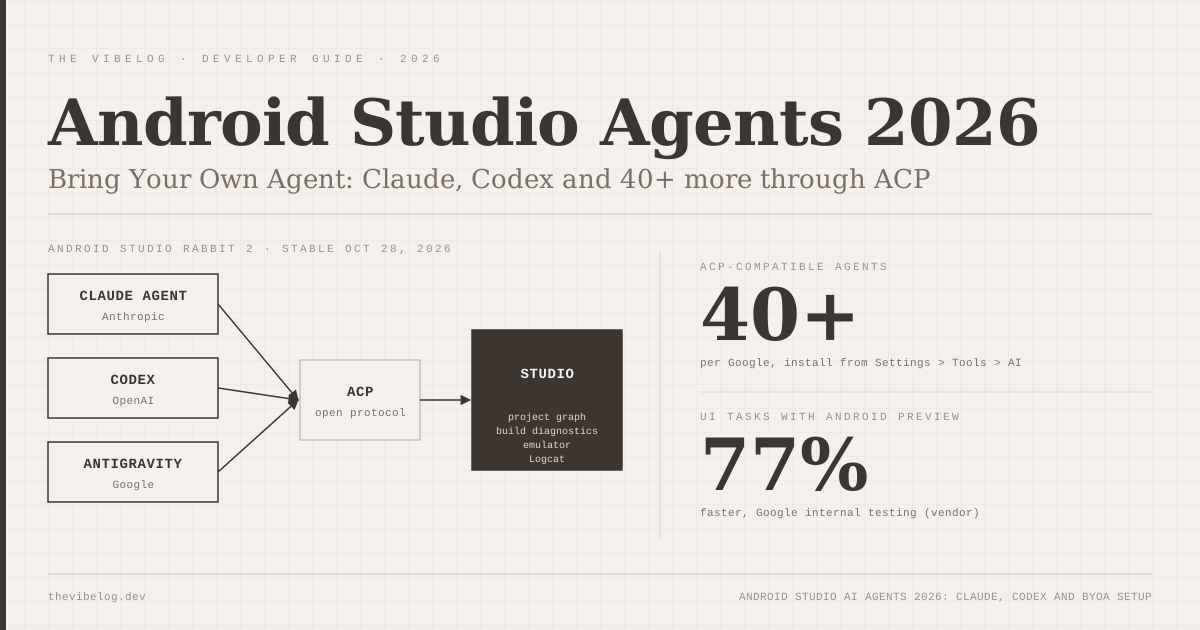
Android Studio AI agents stopped being a Gemini-only story on October 28, 2026. Android Studio Rabbit 2 shipped to the stable channel with Bring Your Own Agent, which lets you run Anthropic’s Claude Agent, OpenAI Codex, Google Antigravity and, by Google’s count, more than 40 other coding agents inside the IDE through the open Agent Client Protocol.
That is a bigger concession than it looks. Google owns the platform, the IDE and a competing model family, and it just made the IDE neutral ground. For Android developers who already pay for Claude or ChatGPT, the question is no longer “which assistant does Android Studio give me” but “which harness gets the best Android context”.
I read the release notes, both Android Developers Blog posts and the Android CLI docs to work out what actually changed. Here is the setup, what the agent can reach, and where the terminal plugin is the better choice.
What Is Bring Your Own Agent in Android Studio?
Bring Your Own Agent is Android Studio’s support for third-party coding agents over the Agent Client Protocol (ACP), the same open protocol JetBrains uses for its multi-agent IDE work, covered in our JetBrains Air guide. ACP standardises how an editor talks to an agent, so one integration in the IDE covers any compliant agent.
According to the Android Studio release notes, BYOA “pairs your chosen agent with IDE-native intelligence, passing the full project graph, build diagnostics, and emulator controls directly into your agent for faster execution and lower token consumption.”
The listed benefits are specific:
- Support for any ACP-compliant agent
- Direct IDE access to build diagnostics, Android SDK tools, terminal and shell execution, and emulator management
- Sign-in with personal API keys or consumer subscriptions
The feature first appeared as a Canary preview on September 24, 2026. It is now stable, which matters because Google says cloud service integrations in Android Studio are only available on the latest stable channel and recent major versions.
The short version: Google is selling the IDE’s knowledge of your Android project, not the model.
Which Android Studio AI Agents Can You Use?
Google’s launch post says you “can choose from over 40 coding agents --- including Claude Agent, Codex from OpenAI, Junie, and Google Antigravity.” Three of those are wired in as defaults in the agent window.
| Agent | How it connects | Who bills you |
|---|---|---|
| Claude Agent (Anthropic) | Default in agent window | Your Anthropic subscription or API key |
| Codex (OpenAI) | Default in agent window | Your OpenAI plan or API key |
| Google Antigravity | Default in agent window | Your Google sign-in; latest Gemini models |
| Junie (JetBrains) | Registry: Settings > Tools > AI > Agents | Junie’s own sign-in |
| Other ACP agents (40+ total) | Registry: Settings > Tools > AI > Agents | Each provider |
| Android Studio built-in agent | Built in | No extra charge |
(Source: Android Developers Blog, Android Studio release notes)
The Android Dev Summit tools roundup adds that you “can install more than one and switch between them as you work”, and that you “get new agent features as soon as they ship”. Agents get access to project structure, symbol resolution, Compose Preview rendering, the Emulator and Logcat, and can use Google’s official Android skills.
If you already use a coding agent, use that one. Switching agents to get Android context is no longer necessary.
How to Set Up Claude or Codex in Android Studio
The setup is short. From the release notes and launch post:
- Update to the latest stable Android Studio. Rabbit 2 is version 2026.2.2. Use Help > Check for updates (Android Studio > Check for updates on macOS).
- Open the agent window and pick an agent. Claude Agent, Codex and Antigravity appear as defaults.
- Sign in or paste an API key. Each agent uses its own authentication.
- Find more agents under File (Android Studio on macOS) > Settings > Tools > AI > Agents, then install from the registry.
- Manage skills from the Agent panel’s three-dot menu (Manage Agent Skills), by typing
@in chat and choosing Manage skills, or under Settings > Tools > AI > Skills Manager.
Rabbit 2 ships with Android skills and Firebase agent skills preloaded, covering jobs like migrating XML Views to Jetpack Compose, upgrading to AGP 9 and adaptive layouts for foldables.
One step Google does not spell out for third-party agents is data handling. The launch post lists strict privacy guarantees, such as source code never being retained or used for training, but it attaches them to Gemini Enterprise. As the DEV Community breakdown points out, a third-party agent inside Android Studio still runs on that vendor’s terms.
Check your Anthropic or OpenAI plan’s data settings before pointing an agent at a client codebase.
Android CLI Plugin for Claude Code and Codex
Here is the part most coverage underplays. You do not need Android Studio at all to give Claude Code or Codex Android tooling.
Android CLI is Google’s command-line interface for agent-first workflows. It can set up the SDK, scaffold projects, build and run apps, manage emulators, inspect live screens and UI hierarchies, render Compose previews, profile apps and pull Firebase Crashlytics signals. Google now ships it as an official plugin. From the agent plugins page, for Claude Code in a terminal:
claude plugin marketplace add android/android-cli-plugin
claude plugin install android-cli@android-cli-plugin
For Codex:
codex plugin marketplace add android/android-cli-plugin
codex plugin add android-cli@android-cli-plugin
Then install the CLI itself from Google’s download page, run android update, and run android init to install the android-cli skill. The plugin adds tools to create projects, manage virtual devices, inspect live UI layouts, run Journeys tests and search the Android Knowledge Base.
If plugins in Claude Code are new to you, our Claude Code mods guide covers how the marketplace commands and trust model work.
Two practical notes. Android CLI collects usage data by default, including which agent invoked it, and you disable that with --no-metrics. And android device remote provisions a real physical device from a Google device lab, which is useful and also a reach worth putting behind an approval prompt.
Android Studio vs Android CLI: Benchmarks Google Published
Google published two efficiency claims, both from internal testing on task sets it has not released.
- UI tasks faster with android preview 77%
- Fewer tokens on LeakCanary workflow (up to) 25%
Source: Android Developers Blog, Android Dev Summit tools post (Oct 28, 2026)
Per the Android Dev Summit post, agents using android preview “completed UI tasks 77% faster while using up to 3x fewer tokens.” With the LeakCanary tool, “the most capable models ran this process almost 2x faster while using up to 25% lesser tokens”. Google’s chart for that test shows Claude Opus 5.5 with and without Android CLI.
There is a status wrinkle. The same post says android profiler leakcanary is integrated, then says “the memory leak subcommand is coming soon to Android CLI” and that Fix with AI for leaks is in Canary. Treat the memory leak workflow as partly shipped and check android -h on your version.
The numbers are believable in direction. An agent that can render a Compose preview instead of guessing at layout, or read a heap analysis instead of a raw dump, will burn fewer tokens. I would not quote the exact percentages to your team until someone reproduces them.
| Need | Better route | Why |
|---|---|---|
| Compose UI iteration | Android Studio BYOA | Preview rendering, emulator, symbol resolution in one place |
| Code review of agent changes | Android Studio | Change Review with /review and guided walkthroughs |
| CI and scripted builds | Android CLI plugin | Works in any terminal, no IDE |
| Terminal-first Claude Code users | Android CLI plugin | Same Android tools in your existing harness |
| Real-device testing | Either | android device remote from the CLI |
(Source: Android Developers Blog and Android CLI docs, Oct 2026)
What Else Shipped in Rabbit 2 for Agents
Three additions matter if agents write a lot of your code.
Change Review. Android Studio can now review agent changes, pending commits or the Git log, list recommended fixes, then build a guided walkthrough that groups related diff chunks by theme. You can call it with /review from the agent window. This is Google admitting the new bottleneck is review, not generation.
Skills manager. Installing and scoping skills inside the IDE gives you some control over what procedural guidance the agent gets. Google says it now publishes over 30 Android skills across more than 20 areas, each backed by evaluations.
Android Bench 2.0. Google’s leaderboard grades models and agent harnesses on long-running Android tasks, like migrating an app’s UI, on whether the result works, plus cost and time. It is the most relevant public benchmark for this decision, and worth checking before you pick an agent for Android work.
For browser-side debugging, the same pattern exists on the web through the Chrome DevTools MCP server, which gives agents the console, network panel and Lighthouse audits.
Which Setup Should Android Developers Use?
If you live in Android Studio, install Rabbit 2 and connect the agent you already pay for. Claude Agent or Codex with full IDE context is a better Android assistant than the same agent guessing from files alone.
If you work in a terminal or need agents in CI, install the Android CLI plugin into Claude Code or Codex and skip the IDE integration. If you build cross-platform with React Native, our Expo SDK 56 guide covers Expo’s own agent skills, which sit alongside these tools rather than replacing them.
The tradeoff is governance. Gemini Enterprise is the only route where Google spells out data retention, audit logs and admin policies inside Android Studio. Everyone else inherits their agent vendor’s terms. Google is also not the only one making this move: DeepSeek’s always-on Super-Agent prototype shows agents spreading into chat and GitHub, not just IDEs. For Android teams, the practical conclusion is simple: pick your agent on quality and data terms, then let Android Studio or Android CLI supply the platform context.